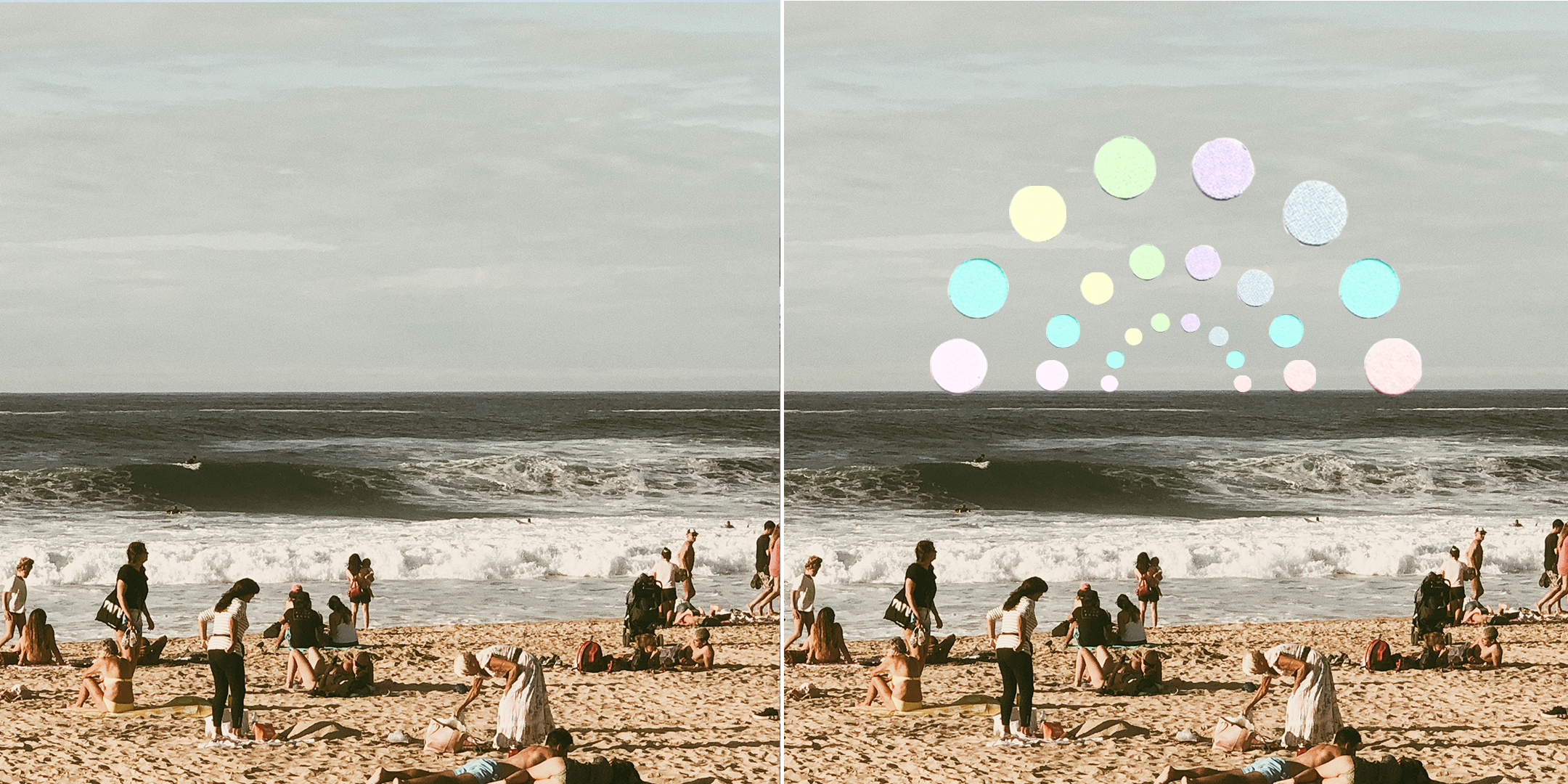
With every completed journal spread, I’m left with a trail of paper scraps not too far behind. These tiny torn pieces seem to have little use, yet are somehow too pretty to throw away. The eternal dilemma of a journaler.
Long before journaling became a hobby of mine, digital art captivated my attention and time. I’m talking hours spent on the family computer tinkering with a program called Animation Shop, making AIM icons (for all the youngins, AIM stands for AOL Instant Messenger). I’d upload these glittering icons with lyrics, quotes, or something else to the now defunct Iconator, and anxiously check back to see if someone rated it five stars.
AIM may be gone, but my passion for digital art stuck around and evolved far beyond flickering GIFs with text. So with endless paper scraps taking over my shelf, I saw an opportunity. I combined my knack for journaling and digital art and cut, scanned, and edited my way to some dreamy paper overlays. Those paper scraps are now swirling shooting stars and colorful arches that dazzle any photo. Keep reading to learn how I made these paper texture overlays below, and tweak my process to make it yours.

Tools
Paper: Colored paper, cardstock paper, and scrapbook paper are all great options for this DIY.
Hole puncher: A regular hole punch will do.
Star punchers: I use star punchers in three different sizes to cut out stars, but you use can scissors too. Make whatever shapes you like.
Scanner: The printer-scanner combo I bought during my college days is still kicking, and what I used for this project. You can also take a picture with a camera, but be sure to use good lighting and a plain background.
Photoshop: You’ll need something to separate the background from your shapes. Photoshop is what I’m most comfortable with, but there are free tools like this one to achieve similar results
All in all, use what you have!
My Process
Cut out your shapes: I grabbed tiny bits of scrap paper in different colors and started punching my way to some overlays. You can add dimension by cutting out shapes in different sizes and colors.
Scan you scrap paper: I placed the cutouts onto the scanner, and arranged them into the design that I wanted. I made arches, arranged some shooting stars, and scattered my circles and stars across the scanner to make that overlay design look organic. You can always rearrange individual shapes in Photoshop if your design gets messed up while scanning.
Remove the background: I uploaded my scanned images to Photoshop and removed the background with the magic wand tool. I adjusted the threshold as necessary, and cleaned up any remaining spots with the eraser tool.
That’s it! I created some examples below of how these paper texture overlays look on photos, and I’m so happy with the results.